MS Access: Master File Management with SQLite Databases
MS Access plays a crucial role in managing databases, offering a robust and user-friendly solution for storing, manipulating, and retrieving data. As a part of the Microsoft suite, it's widely used by businesses and individuals alike for its simplicity and flexibility. But with great power comes great responsibility, and managing MS Access files efficiently is key to leveraging its full potential.
This article delves into the intricacies of managing MS Access databases, providing a comprehensive guide on how to organize, secure, and maintain your data using this versatile tool. By the end, you'll have a solid grasp on best practices that will ensure your databases run smoothly and remain reliable over time.
Understanding MS Access Database File Types
Before diving into management strategies, it's essential to understand the different MS Access file types. This knowledge will help you choose the appropriate file format for your needs.


The two primary MS Access file types are:
- .accdb: This is the native MS Access file format, used by default in recent versions (2007 and later). It's compact, fast, and supports features like encryption and data macros.
- .mdb: This format is older and larger, used in pre-2007 versions. While it's still supported, using the newer .accdb format is advisable for better performance and security.
Choosing the Right Access Database File Type
The choice depends on your MS Access version, your need for newer features, and compatibility with other systems. For instance, if you're working with a team using older MS Access versions, you might need to stick with .mdb for now. However, if you're using the latest version, consider .accdb for its improved functionalities.


It's also worthwhile to note that MS Access can convert files from one format to another. This feature comes in handy when you need to change the file type for any reason.
Organizing MS Access Databases for Efficient Management
Organizing your MS Access files is crucial for data integrity, easy navigation, and fast retrieval. Here are some best practices:
Module/Object Separation
Break down your database into independent objects - tables, queries, forms, reports, and macros. Each should serve a specific purpose and be stored in their respective modules. This structure improves data consistency and simplifies database maintenance.


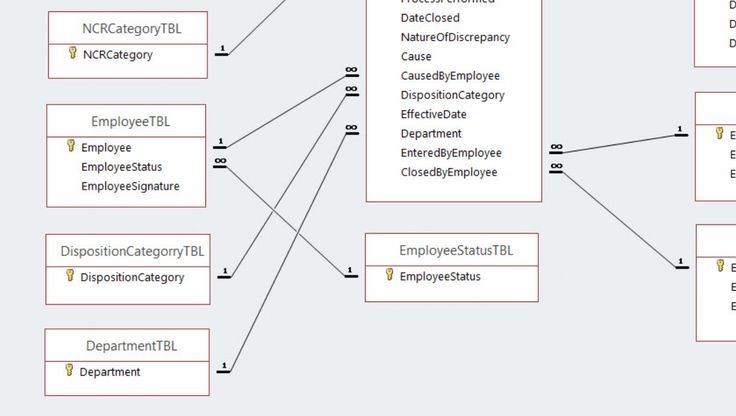


For instance, all tables can be grouped under a 'Tables' module, while separate modules can be created for specific types of queries, forms, or reports.
Naming Conventions
Adopt a consistent naming convention for all objects. This helps in identifying and locating objects quickly. A simple and clear naming system can be, for example, 'Table_Customers' for a table that stores customer data, or 'Query_Orders_{Year}' for a query that filters order data by year.
Avoid spaces and special characters in object names, as they can cause compatibility issues with other systems or languages.
Securing MS Access Databases
Safeguarding your MS Access databases is paramount, especially if they contain sensitive or shared data. Here are two key aspects of database security:
User & Group Permissions
MS Access allows you to set permissions for individual users or groups, granting or restricting access to specific objects or actions. Understanding and utilizing these permissions can prevent unauthorized data manipulation or access.
For instance, you can set permissions to allow users to read data from a table but not modify or delete it. This ensures data integrity while providing users with the information they need.
Database Encryption
With the introduction of the .accdb format, MS Access provides built-in database encryption. Enabling this feature protects your data from unauthorized access, even if the physical file is compromised.
To enable encryption, open your Access database, click on 'File' > 'Info' > 'Encryption,' and then toggle on 'Encrypt with strong password'. This will prompt you to create a strong password.
Regularly backing up your MS Access databases is not just a best practice, it's a necessity. It provides a safety net in case of data loss, corruption, or human error. MS Access offers several methods for backing up data:
- Compact and Repair: This compresses your database file, reclaiming disk space and repairing any corruption. Go to 'File' > 'Info' > 'Tools' > 'Compact and Repair Database'.
- Backup and Restore: The 'Backup' feature creates a copy of your database, while 'Restore' allows you to revert to a previous state. Both can be accessed via 'File' > 'Info' > 'Tools' > 'Backup & Restore'.
- Export and Import: You can export data to other formats (like CSV, Excel, or Text) for safekeeping or to share, and import it back when needed. Use 'File' > 'Info' > 'Get Data' or 'Export' for these options.
Choose the method that best suits your needs and schedule regular backups to ensure your data remains protected and accessible.
Maintaining MS Access Databases
Regular maintenance keeps your MS Access databases running smoothly and efficiently. Here are some maintenance tasks to keep in mind:
Indexing
Indexing selected fields in your tables can speed up data retrieval and improve performance. However, remember that while indexes enhance data access, they also slow down data modification operations. So, use them judiciously.
Database Split
If your database size exceeds 2GB, consider splitting it into a back-end (.accdb) and a front-end (.accde) database. The back-end stores data and logic, while the front-end contains just the user interface. This can improve performance and allows for easier maintenance and sharing.
With these best practices in play, your MS Access databases will remain organized, secure, and efficient. Embracing these strategies will help you maximize productivity and ensure your data remains reliable and accessible.
As you delve into managing your MS Access files, always remember to stay adaptable and open to new strategies. After all, technology continues to evolve, and so should your management techniques. Happy exploring!
Related Articles
Auto-Saving MS Access Databases: Using the .ACCDB Extension
When you're working on a project in Microsoft Access and you've made changes to your database, one crucial step is to save all your work, right? But have you...
MS Access Database File Extension: Saved As
When you're working with Microsoft Access, you might encounter a situation where you're unsure about a file's extension or wonder, "What file extension does...
Master Microsoft Access: Grab Current DB Path with VBA
Accessing the path of the current database in Microsoft Access VBA (Visual Basic for Applications) is a common requirement when you need to work with external...

"Access 2016: Saving Databases with DASH Extension"
Microsoft Access 2016 is a powerful database management system that enables users to create, manage, and analyze data effectively. One of the key features of...

Master Excel Resource Management with Gantt Charts
Effective resource management is the backbone of any project's success. One of the most powerful tools for visualizing and scheduling resources is the Gantt...

Access Database File Format: A Comprehensive Guide
Access databases are an integral part of data management, enabling users to store, manipulate, and retrieve information in a structured format. A critical...