Mastering Linked Tables in MS Access with SharePoint
Integrating Microsoft Access with SharePoint can significantly enhance your organization's data management and collaboration potential. One of the key aspects of this integration is linking Microsoft Access tables to SharePoint lists. This not only allows real-time data sync but also leverages SharePoint's powerful collaboration features for improved efficiency.
In this guide, we will delve into the process of linking Microsoft Access tables to SharePoint lists, exploring the benefits and best practices along the way. Let's get started.
Understanding SharePoint Lists and Access Tables
Before we dive into linking, it's crucial to understand the basics. SharePoint lists are similar to tables in Access - they store data in rows and columns. However, SharePoint lists are designed for sharing and collaboration, making them an excellent choice for tasks like project management, issue tracking, or document management.
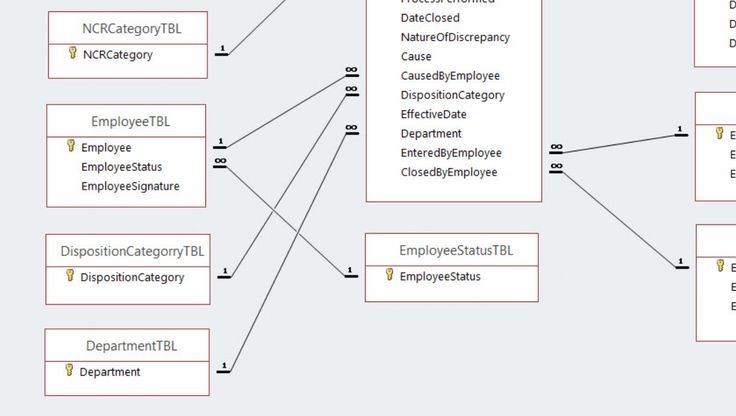


Access tables, on the other hand, are more robust and offer advanced querying, reporting, and relational features. By linking these tables to SharePoint lists, you can combine the strengths of both platforms for more comprehensive data management.
Benefits of Linking Access Tables to SharePoint Lists
1. **Collaboration**: SharePoint's social features like comments, likes, and versioning enable better collaboration around Access data.


2. **Access Control**: SharePoint's item-level permissions allow for granular control over who can view, edit, or approve specific records.
Prerequisites for Linking Access Tables to SharePoint Lists
1. **Access to both platforms**: Ensure you have appropriate permissions to both Microsoft Access and SharePoint.
2. **Matching Field Types**: For a successful link, the field types in both tables should match (e.g., Text, Number, Date/Time).


Steps to Link Microsoft Access Tables to SharePoint Lists
Now that we've covered the basics, let's walk through the step-by-step process of linking your Access tables to SharePoint lists.
1. **Create a SharePoint List**: Start by creating a new list in SharePoint that mirrors the structure of your Access table (same number of fields and matching field types).
Linking the Access Table to the SharePoint List
2. **Open the Access Database**: Launch Microsoft Access and open the database containing the table you want to link.
3. **Access External Data**: Click on 'Data' > 'Get External Data' > 'From Other Sources' > 'From SharePoint List'.
Mapping Access Fields to SharePoint Columns
4. **Map Fields**: In the 'Get Data' dialog box, ensure the SharePoint list you created is selected. Click 'OK'.
5. **Map Fields**: In the 'Choose How You Want to View This Data' dialog box, click on 'Edit Relationships'. Here, you can map Access fields to the corresponding SharePoint columns.
Related Articles
MS Access: Connect Linked Tables Using Relative Paths
Managing databases in Microsoft Access often involves linking tables for centralized data management. One common question that arises is how to deal with...

"Unifying Data: Mastering MS Access Link Tables Across Multiple Databases"
Coping with data scattered across multiple Microsoft Access databases? Link tables from different databases to streamline your information management. This...

Accessing Calendar: Mastering the Table
In the realm of relational databases, the access calendar table, often intertwined with the concept of scheduler tables, plays a pivotal role in managing...

"Mastering KPI Pivot Tables in Excel"
Meticulously tracking and analyzing Key Performance Indicators (KPIs) is vital for any organization to measure progress, identify trends, and make data-driven...

Mastering Rectangular Wedding Table Layouts: Seating Plans for Unforgettable Receptions
Designing the perfect wedding seating plan around rectangular tables is a task that's both an art and a science. You want to ensure every guest is comfortable...

Perfect Round Table Seating Plan: Design Tips & Layout Ideas
When planning your next event, one critical aspect to consider is the seating arrangement. A well-designed seating plan can significantly enhance the ambiance...